
WeCreate Quick Start Guide
How to sign in, find content for your newsletter, and download it in the right format. Each section shows the real screen.
1 Signing in
You open WeCreate from your LPi Dashboard. There's no separate WeCreate password.
Sign in and open WeCreate
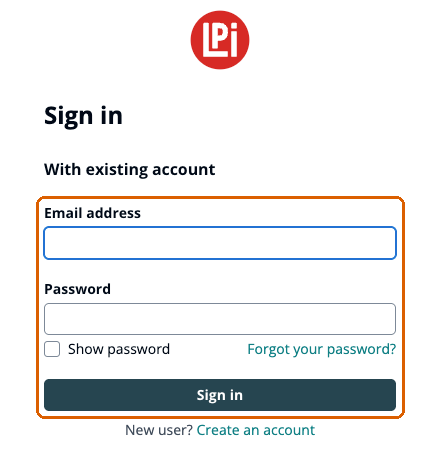
- Go to mylpidashboard.com.
- Under With existing account , enter your email address and password, then click Sign in. If you've forgotten your password, click Forgot your password?
- In the Dashboard's menu, click Community WeCreate.
- Reloading the page keeps you signed in.
- A new browser tab signs you in on its own, as long as you're still signed in to the Dashboard.
- If your session runs out, WeCreate takes you back to the Dashboard. Click the WeCreate button again.
- To sign out, click Log out at the top right. This signs you out of WeCreate only, not the Dashboard.
2 The home page
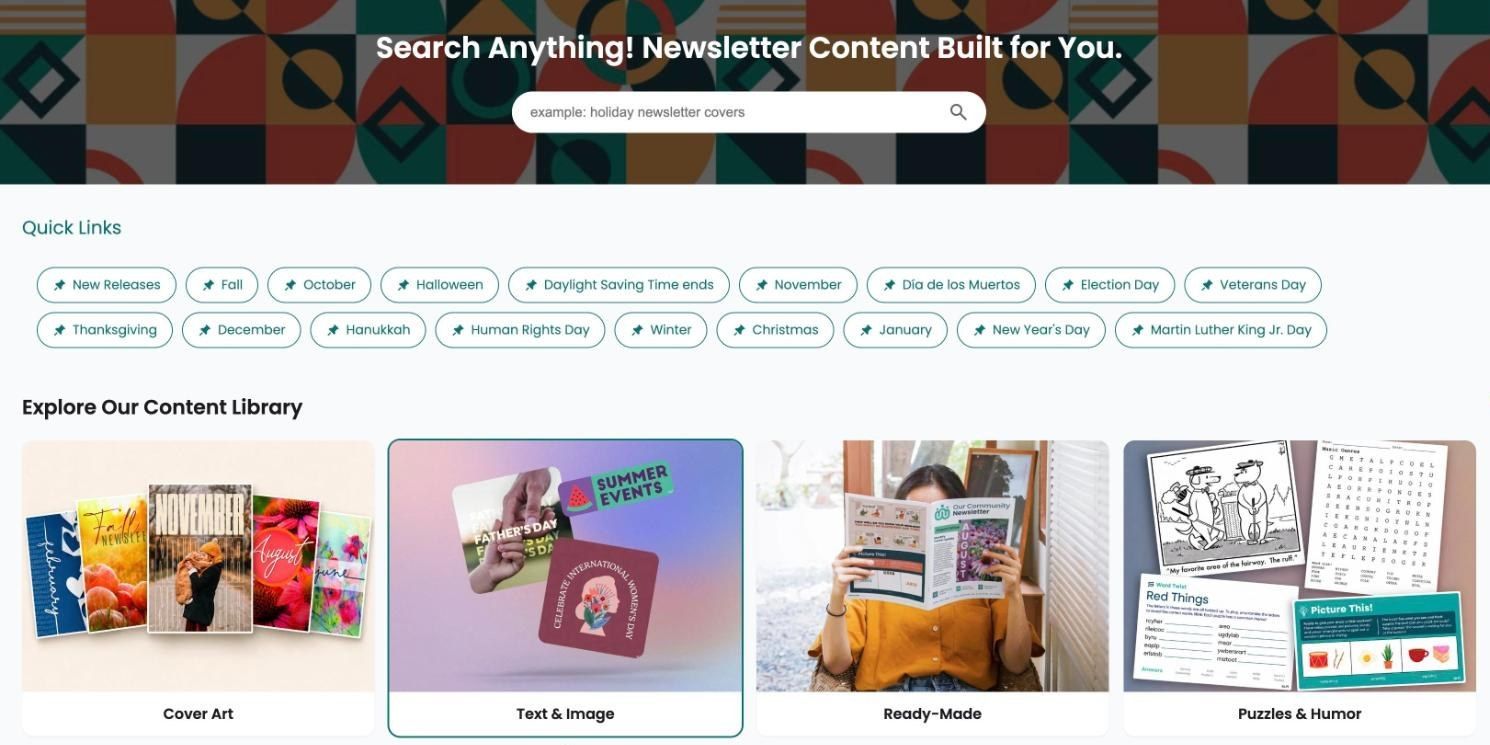
The home page has four parts, top to bottom: the search banner, Quick Links, the content tiles, and a link to the Canva Pro templates.
What's on it
| Part | What it does |
|---|---|
| Search banner | Type anything and press Enter. See Finding content. |
| Quick Links | Shortcuts to what's coming up. Click one to see everything for that holiday, season or month. |
| Content tiles | Cover Art, Text & Image, Ready-Made and Puzzles & Humor. Hover over a tile to open its menu. Click the tile to see everything in it. |
| Canva Pro | Goes straight to the Canva Pro newsletter templates. |
Quick Links
One row shows New Releases first, then the holidays, seasons and months coming up, such as Halloween, Fall and November. The row moves forward on its own as days come and go.
- Results are grouped by section, and each section shows its first three rows. Click Expand to View More… under a section, for example "Expand to View More Graphics (24)", to see the rest.
- In Photography, photos for the holidays coming up come first, then everyday photos, then other seasons'.
The tile menus
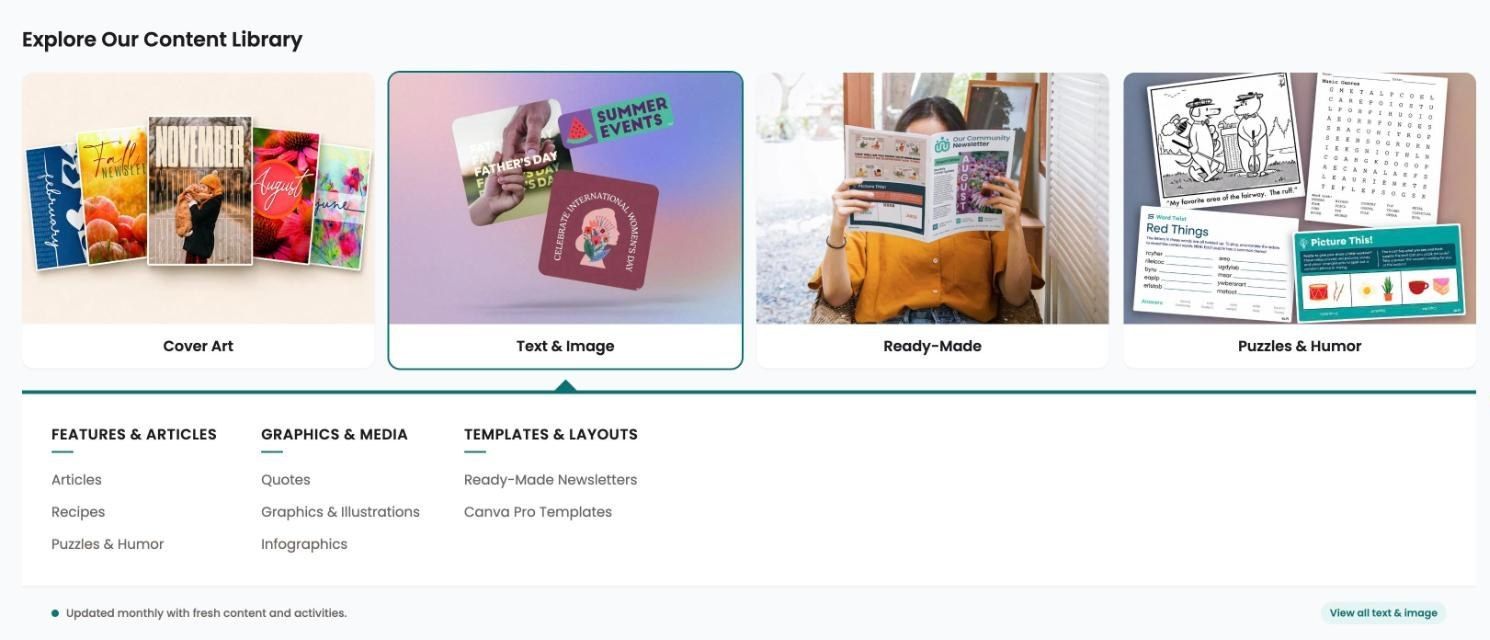
Hovering over a tile opens its menu below the tiles. The same menus are in the bar at the top of every results page. It's the quickest way to go straight to one kind of content.
| Menu | Group | Rows |
|---|---|---|
| Cover Art | By Publication Date | January to December |
| By Holiday | Halloween, Thanksgiving, Christmas, New Years, Valentine's Day, April Fool's Day | |
| Text & Image | Features & Articles | Articles, Recipes, Puzzles & Humor |
| Graphics & Media | Quotes, Graphics & Illustrations, Infographics | |
| Templates & Layouts | Ready-Made Newsletters, Canva Pro Templates | |
| Ready-Made | Ready-Made Newsletters | Monthly Newsletters |
| Templates | Canva Pro Newsletter Templates | |
| Puzzles & Humor | Puzzle Types | Crossword, Enigma, Fun Facts, Lighter Side, Rebus, Sudoku, Word Search, Word Twist |

3 Finding content
Search, Quick Links and the menus all lead to the same results page.
Search and narrow the results
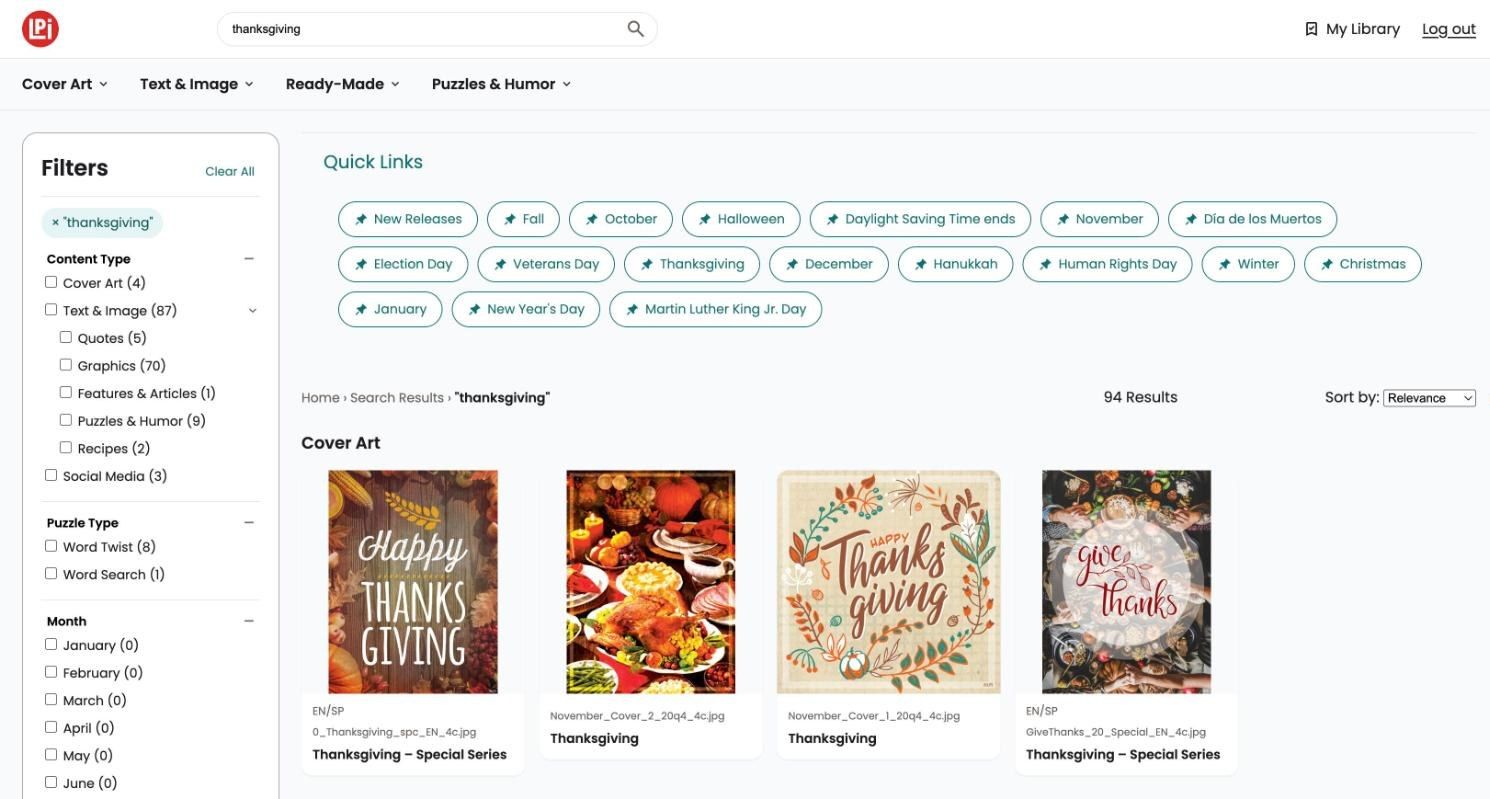
- Type in the search box and press Enter. Search looks at titles first, then sections, tags and holiday names.
- Results are grouped by section, such as Cover Art. When you open a menu row, the heading takes that row's name. Click Expand to View More… under a section to see more of it.
- Narrow the results with Filters on the left. Remove one with its ×, or click Clear All.
- Change the order with Sort by : Most Popular , Newest or, when you've typed a search, Relevance . A list of similar pieces also offers Most Similar .
- Click any card to open it.
- Typing a new search clears your filters and Quick Links. Pick the filters again afterwards.
- Clicking a Quick Link keeps your search and filters. Click it again to turn it off.
- With a Quick Link on, picking a different holiday or month in Filters gives ordinary results. To see it the Quick Link way, click its Quick Link.
- If a Quick Link plus filters leaves only a few results, a banner offers to clear the filters.
- A filter only appears when it can narrow your results.
- Filtering by My Library → Saved by me shows only the pieces you've saved.
- Know a file name? Search for it to bring that piece to the top.
Reading a card
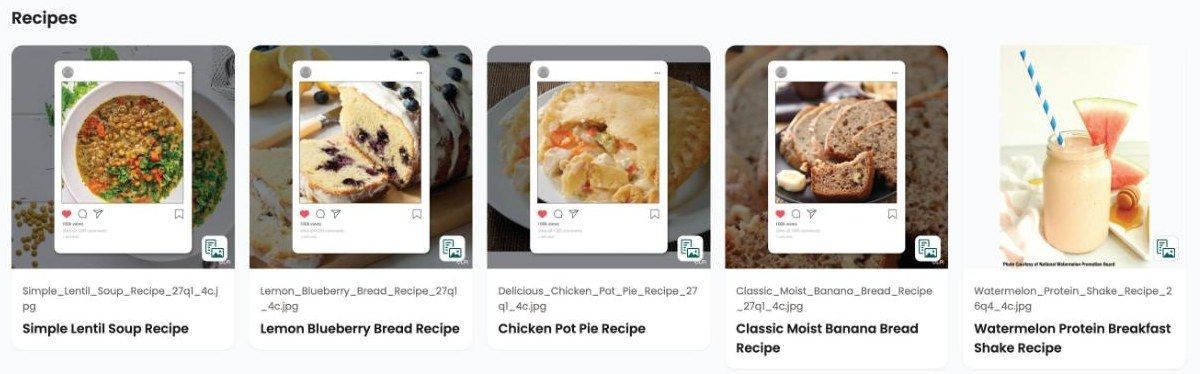
- Above the title: the language versions ( EN/SP , Bilingual ), the series if there is one, and the file name.
- A small teal icon in the bottom-right corner of the picture means the piece includes an image and a text you can read and copy. Hover over it to see "Includes an image and a text document".
The filters
| Filter | Narrows to |
|---|---|
| Content Type | A kind of content, such as Cover Art or Ready-Made. Some open into smaller groups. |
| Puzzle Type | A kind of puzzle, such as Sudoku, Crossword or Word Search. |
| Holiday | A holiday, such as Thanksgiving. |
| Month | A month of the year. |
| Language | "Spanish version available" or "Bilingual version available". |
| Orientation | Vertical, Horizontal, Square or Tall . Tall is for extra-tall cover art. |
| My Library | Only the pieces you've saved. |
4 The asset page
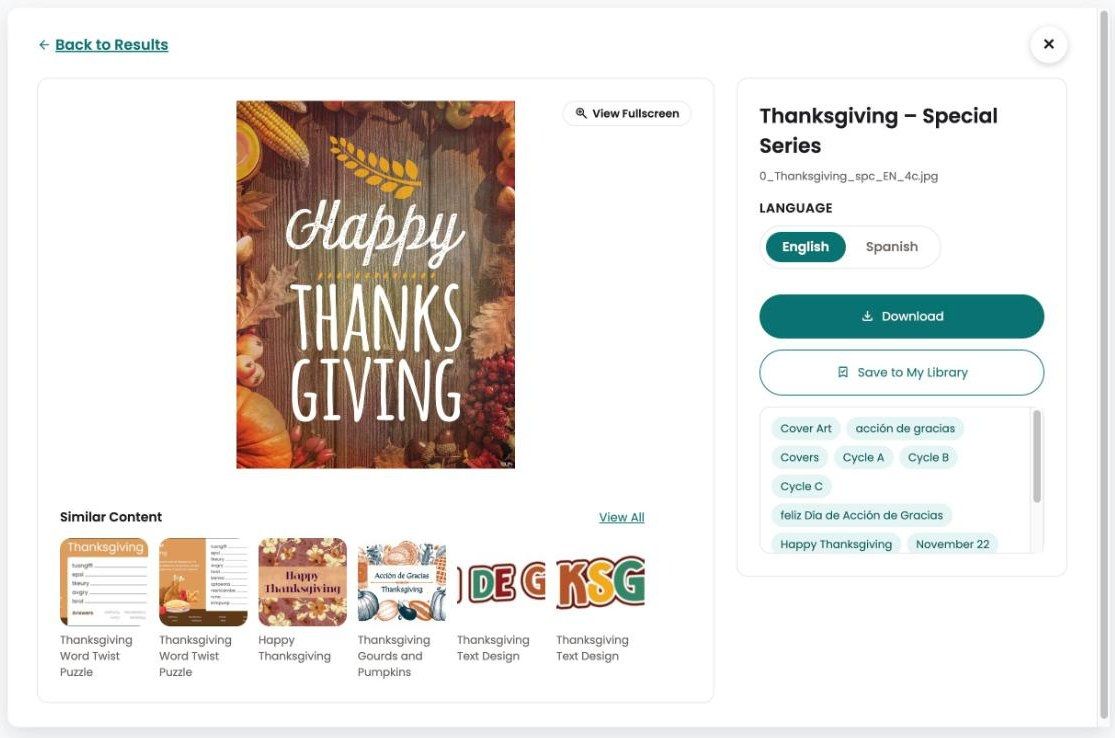
Clicking a card opens the piece over the results. Back to Results , the ×, or the Esc key closes it.
What's on it
| Item | What it means |
|---|---|
| File name | The name of the original file, under the title. Quote it if you contact us about a piece. |
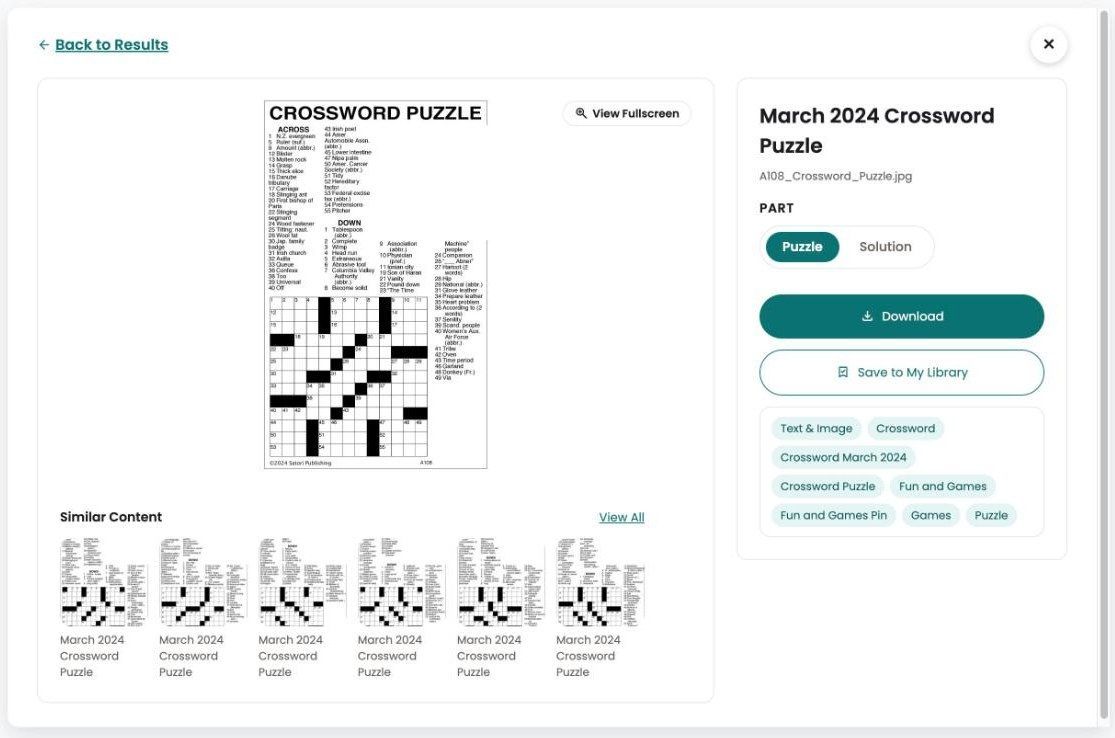
| Part : Puzzle, Solution | On a puzzle, switches between the puzzle and its solution. The page opens on the puzzle. |
| Language , Orientation , Color | Switches between versions of the same piece: English, Spanish or Bilingual; Vertical, Tall, Square or Horizontal; Color or Black & White. Only the choices that exist are shown. |
| Tags | The first one is the kind of content, such as Cover Art. Click any other tag to find everything with it. |
| View Fullscreen | A larger preview. |
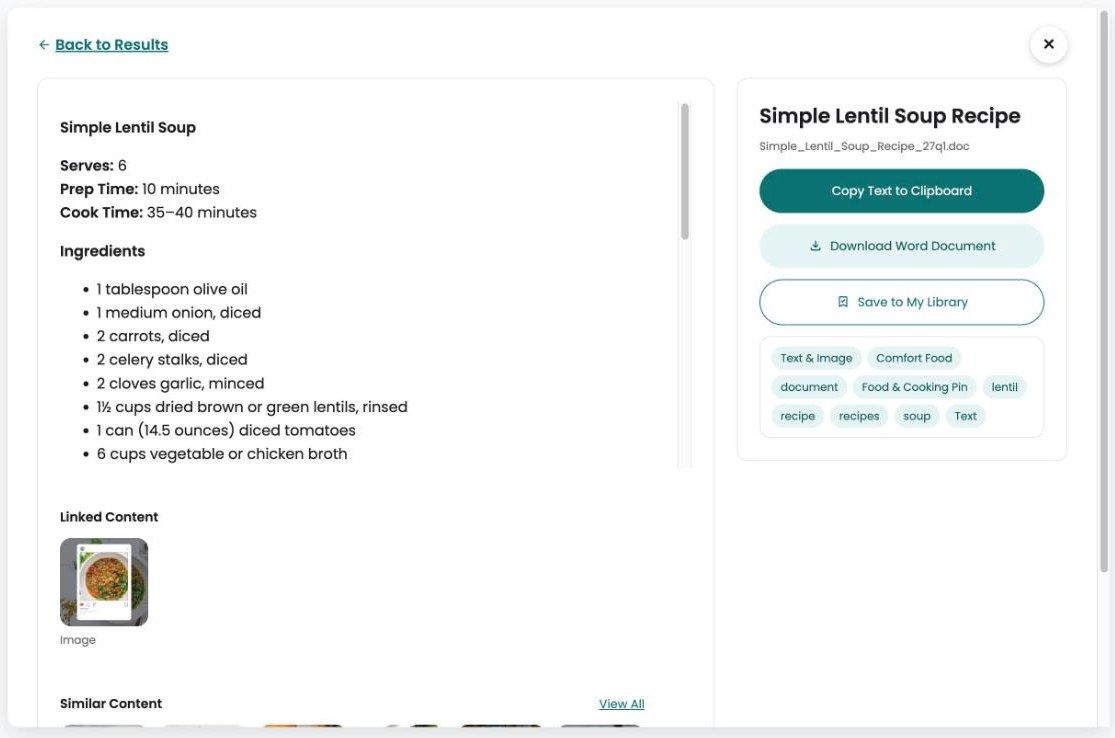
| Linked Content | Other files that belong to this piece, such as a recipe's text. |
| Similar Content | Related pieces, such as other art for the same day. When there are more than six, View All opens them as search results. |
- Copy the address from your browser's address bar while the piece is open.
- The link opens for anyone who can sign in to Community WeCreate.
- Send the page address, not a download link. Download links stop working after five minutes.
Text pieces and multi-page pieces
Puzzles and their solutions
- Open a puzzle. It always opens on the puzzle itself.
- Under Part , click Solution to see the answers, or Puzzle to go back.
- Click Download to download the part that's showing.
5 Downloading
What the download button offers depends on the kind of piece.
Pictures: print or digital
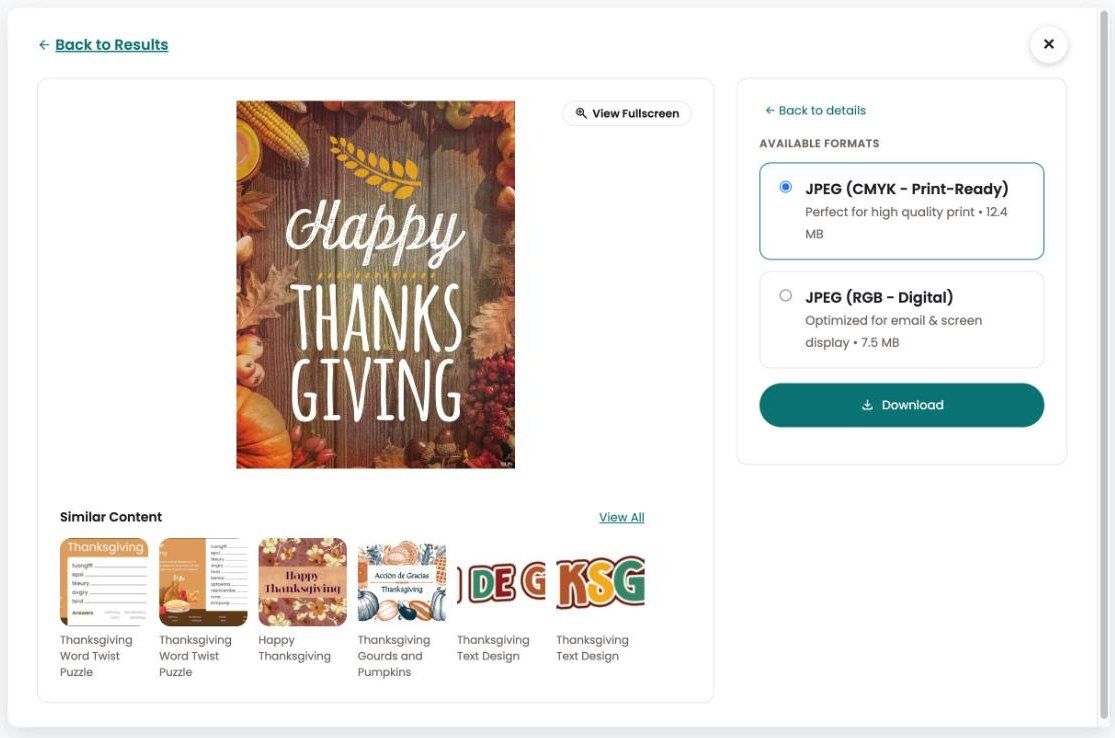
- Open the piece and click Download.
- Pick a format and click Download again.
| Format | Use it for |
|---|---|
| JPEG (CMYK - Print-Ready) | Printed newsletters and flyers. It's the larger file. Its name ends in -print.jpg. |
| JPEG (RGB - Digital) | Email, websites and social media. Colors look right on screen. Its name ends in -digital.jpg. |
Print-ready (CMYK) files can look dull or odd on screen, and some programs and websites won't accept them. For anything on a screen, use the Digital version.
Other kinds of pieces
| Piece | Buttons |
|---|---|
| Text: articles, recipes | Copy Text to Clipboard and Download Word Document |
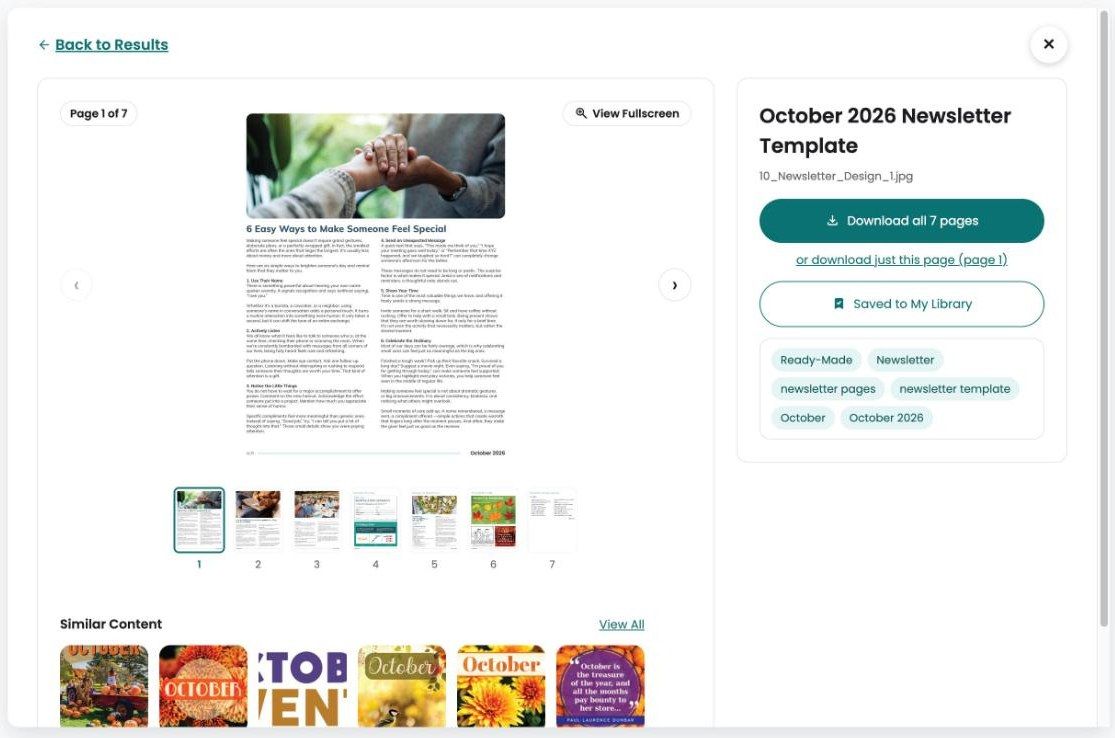
| Ready-made newsletters | Download all N pages (one zip file), or download just this page |
| PDFs | Download PDF (N pages) |
| Web links | Visit website opens the site in a new tab |
| Anything else | Download gives you the file |
6 My Library
My Library is your own list of saved pieces. Everyone has their own.
- To save: open a piece and click Save to My Library. It changes to Saved to My Library.
- To remove: open the piece and click Saved to My Library again.
- To see your list: click My Library at the top right.

- It's a saved list, not a download history. Downloading doesn't add anything.
- Pieces are listed newest first.
- If a piece is retired, it drops out of My Library on its own.
7 How content is organized
Knowing how things are filed answers most "where is…" questions.
Holidays, months and Quick Links
- Content belongs to a holiday, season or month , not to one year's date. Christmas art comes back every Christmas.
- A day usually appears in Quick Links about three months ahead and leaves after the day. A month-long observance stays through the month.
- A day with no content yet doesn't appear in Quick Links. Search for it instead.
- New Releases is everything added in the last 60 days.
Language versions
- Many pieces come in English and Spanish. The card shows EN/SP , and the asset page has a Language switch.
- Bilingual means one piece with both languages on it.
8 Common questions
I can't get in, or it says my account doesn't have WeCreate access.
Your Dashboard account isn't set up for Community WeCreate yet. Contact LPi customer support. Always open WeCreate from the Dashboard.
It says "We couldn't connect".
WeCreate couldn't check your sign-in. Click Return to LPi Dashboard and open WeCreate again. If it keeps happening, contact LPi customer support and tell them your browser and the time it happened.
I can't find the art for a holiday.
Click the holiday in Quick Links, or search for its name. A day that's still a long way off isn't in Quick Links yet, so search for it instead.
Something I used before is gone.
Pieces are sometimes retired. They disappear from search and from My Library. If you need one, contact LPi customer support with its title or file name.
The colors look wrong, or my program won't open the picture.
You probably downloaded the Print-Ready (CMYK) file. For screens, email and social media, use JPEG (RGB - Digital) . See Downloading.
I need the Spanish version.
Open the piece and use the Language switch. To see only pieces with Spanish, use the Language filter: "Spanish version available".
A link someone sent me doesn't work.
Download links stop working after five minutes, so ask for the page address instead. If it says "This item isn't available", the piece has been removed. A link from LPi that says "This link has ended" has expired; ask the person who sent it for a new one.
Where are the puzzles?
Hover over the Puzzles & Humor tile and pick a puzzle type, or use the Puzzle Type filter. To see the answers, open a puzzle and switch Part to Solution .
My search found nothing.
Look for leftover filters or a Quick Link that's still selected, and click Clear All. Try a shorter word, or browse from the menus.
Where are my saved pieces?
Click My Library at the top right. Saved pieces belong to each person, so a colleague's saves won't show in your list.
How do I get the whole newsletter ?
Open it and click Download all N pages. It comes as one zip file. Each page can also be downloaded on its own.
Can I use this in Canva?
Yes. The Canva Pro templates are in the Ready-Made menu, as Canva Pro Newsletter Templates , and the Canva Pro panel on the home page goes straight to them. In search results they have their own heading, Canva Pro Templates .
9 Messages you might see
| Message | What it means | What to do |
|---|---|---|
| Connecting to WeCreate | Checking your Dashboard sign-in. | Wait a moment. |
| Your account doesn't have the required WeCreate access. | Your account isn't set up for WeCreate. | Contact LPi customer support. |
| We couldn't connect | Your sign-in couldn't be checked. | Return to the LPi Dashboard and open WeCreate again. |
| You're signed out | You clicked Log out. | Return to the LPi Dashboard to sign in again. |
| This format is still being prepared; try again in a minute. | The file was added very recently. | Wait a minute and try again. |
| These pages are too large to download together | The zip file would be too big. | Download the pages one at a time. |
| Download failed, try again. | A temporary problem. | Try again. |
| Search is unavailable right now | A temporary problem. | Try again in a moment. |
| This item isn't available | The piece has been removed. | Search for something similar. |
| This link has ended. | A link LPi sent you has expired. | Ask the person who sent it for a new one. |
| Part of this search is no longer available | An old link with a filter that no longer exists. | Click Clear filters and search again. |
| This document cannot be shown as text | The text preview isn't available for this file. | Use Download Word Document. |
| Couldn't copy to the clipboard; try again. | Your browser blocked the copy. | Try again, or use Download Word Document. |
| Couldn't update My Library; try again. | The save didn't go through. | Try again. |
| Could not load the library | The home page couldn't load. | Reload the page. |
| Nothing saved yet | My Library is empty. | Use Save to My Library on any piece. |
If a problem keeps happening, contact LPi customer support.